
Opening COME for the First Time
The install is done. Opening COME confirms everything works.
Sign In or Sign Up
Tap Open after installing, or the COME icon. Use the sign-in options shown. If you've used COME in a browser before, sign in with the same method.
Check It Works
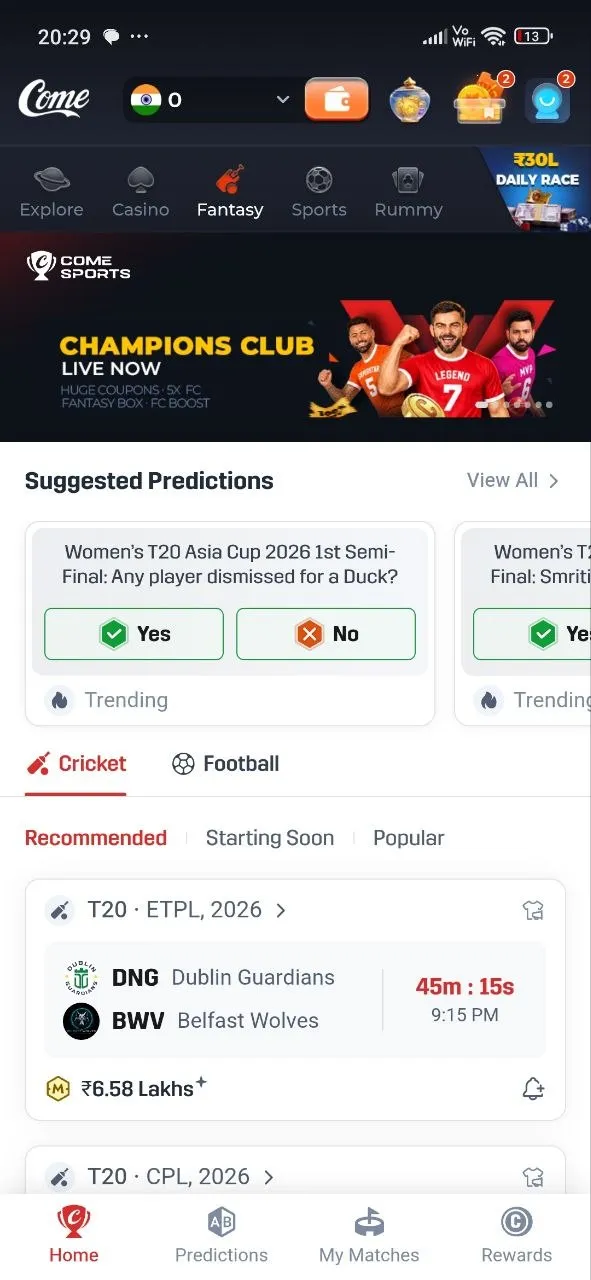
- My Matches opens (empty is normal for a new account).
- Fantasy shows cricket and football match lists.
- Predictions shows Yes or No questions.
If these load, the installation is complete.
Permissions and Settings
If COME asks to send notifications, choose what suits you; you can change it later in Settings → Apps → COME. If your phone closes apps aggressively in the background, you can set COME's battery use to unrestricted.
Tidy Up
Delete the APK from Downloads and switch off the install permission you granted, if you like.
Next Time
Tap the COME icon. You don't need to download the APK again unless COME asks you to update or the app stops opening.
If Something Doesn't Load
Check your connection, close and reopen COME, then clear its cache. If it still doesn't work, see troubleshooting.